Autopilot AI Shipping Automation
Automate rate selection based on your criteria and let AI do the rest to ensure your fulfillment process is as fast as possible.
What is Autopilot AI Shipping?
The AI purchase rate strategy system helps you automatically select the best shipping rate for each order based on rules you define. Instead of manually reviewing every shipping option, you can create strategies that filter available rates and automatically choose the most appropriate one based on your business priorities. This tool is built directly into your SKUSavvy account and once set up can be leveraged to significantly increase your warehouse fulfillment efficiency.
Eliminate Guesswork and Increase Fulfillment Time
What Are the Features of Autopilot?
Core Capabilities
1. Strategy Creation You can create multiple shipping strategies, each with its own name and set of rules. For example, you might have:
A "Standard Shipping" strategy for regular orders
A "Free Shipping" strategy for promotional orders
A "Manual Review" strategy for high-value or unusual shipments
2. Conditional Logic The system evaluates each shipment against your defined conditions to determine which strategy should apply. Conditions can be based on:
Order Details: Customer notes, order tags, shipping method requested, source store
Shipment Characteristics: Total weight, box count, total value of items
Destination: Country, state/province, city, zip/postal code
3. Rate Filtering Once a strategy is selected, it filters the available shipping rates based on criteria you define:
Cost Range: Set minimum and maximum acceptable costs
Delivery Speed: Limit to rates that deliver within a certain number of days
Carrier Selection: Include or exclude specific carriers
Service Types: Include or exclude specific service levels (e.g., Ground, Express, Overnight)
Tracking: Require that rates include tracking information
4. Best Rate Selection From the filtered options, the system chooses the best rate based on a balance between:
Cost: Lower shipping price
Speed: Faster delivery time
You control this balance with a slider - move it toward "Cost" to prioritize cheaper options, or toward "Speed" to prioritize faster delivery.
5. Auto-Approval Strategies can be configured to automatically purchase rates without manual review if:
The shipping cost is below a maximum dollar amount
The shipping cost is below a certain percentage of the order's retail value
If these conditions aren't met, the shipment will require manual review before purchase.
How Autopilot Strategies Work Together
Decision Flow
When a shipment is ready to purchase rates, the system evaluates it against all your strategies in order
The first strategy whose conditions match the shipment is selected
That strategy's filters are applied to available shipping rates
The best rate is chosen based on the cost/speed preference
If auto-approval conditions are met, the rate is purchased automatically; otherwise, it awaits manual approval
Strategy Priority
Strategies are evaluated from top to bottom. Place more specific strategies (like "International Orders over $500") above more general ones (like "All International Orders") to ensure the right strategy is selected.
Default Strategy
You can set a default strategy that will be used if no other strategy's conditions match a shipment. This ensures every shipment has a strategy applied.
Available Autopilot Shipment Conditions
The following conditions can be used when creating strategy rules. Each condition evaluates a specific aspect of the shipment or order to determine if a strategy
should apply.
Order Information
Customer Note
Order Tags
Shipping Method
Source
Shipment Characteristics
Box Count
Total Weight
Shipment Total
Destination Information
Country
State
City
Zip
Combining Conditions
Grouping Logic
Within each strategy, you can combine multiple conditions using:
1) AND Logic - ALL conditions must be true
Example: Country equals "United States" AND Total Weight less than 5 lb AND Order Tags contains "Standard"
2) OR Logic - ANY condition must be true
Example: Order Tags contains "Rush" OR Shipping Method contains "Express" OR Shipment Total greater than $500
You can create multiple condition groups (branches) within a single strategy, each with their own AND/OR logic and leading to different outcomes.
Practical Examples
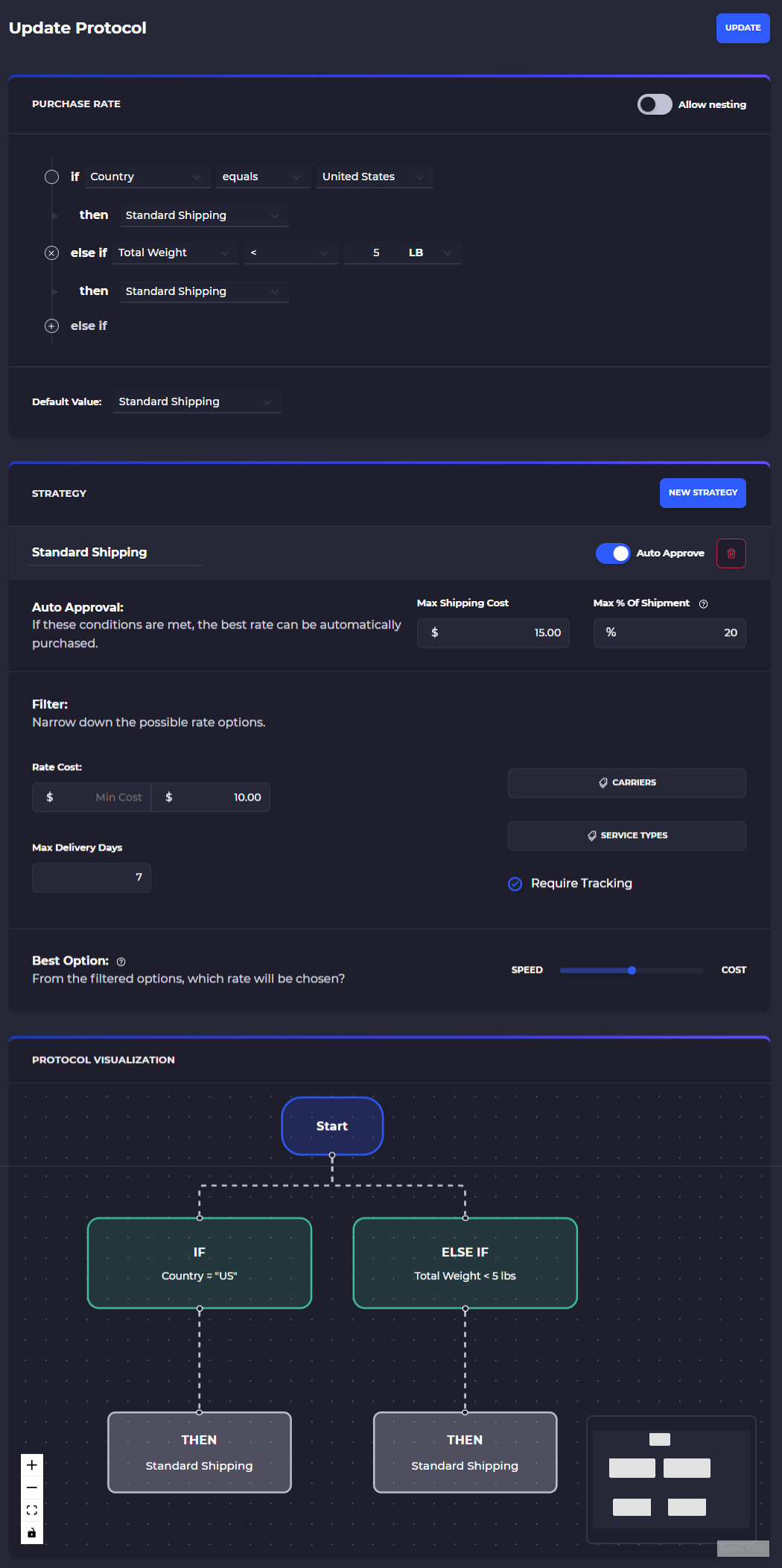
Example 1: Standard Domestic Shipping
Conditions:
Country equals "United States"
Total Weight less than 5 lbs
Filters:
Maximum cost: $15
Maximum delivery: 7 days
Require tracking: Yes
Auto-Approve:
If shipping cost under $10
If shipping is less than 20% of order value
Best Rate: Balanced 50/50 between cost and speed
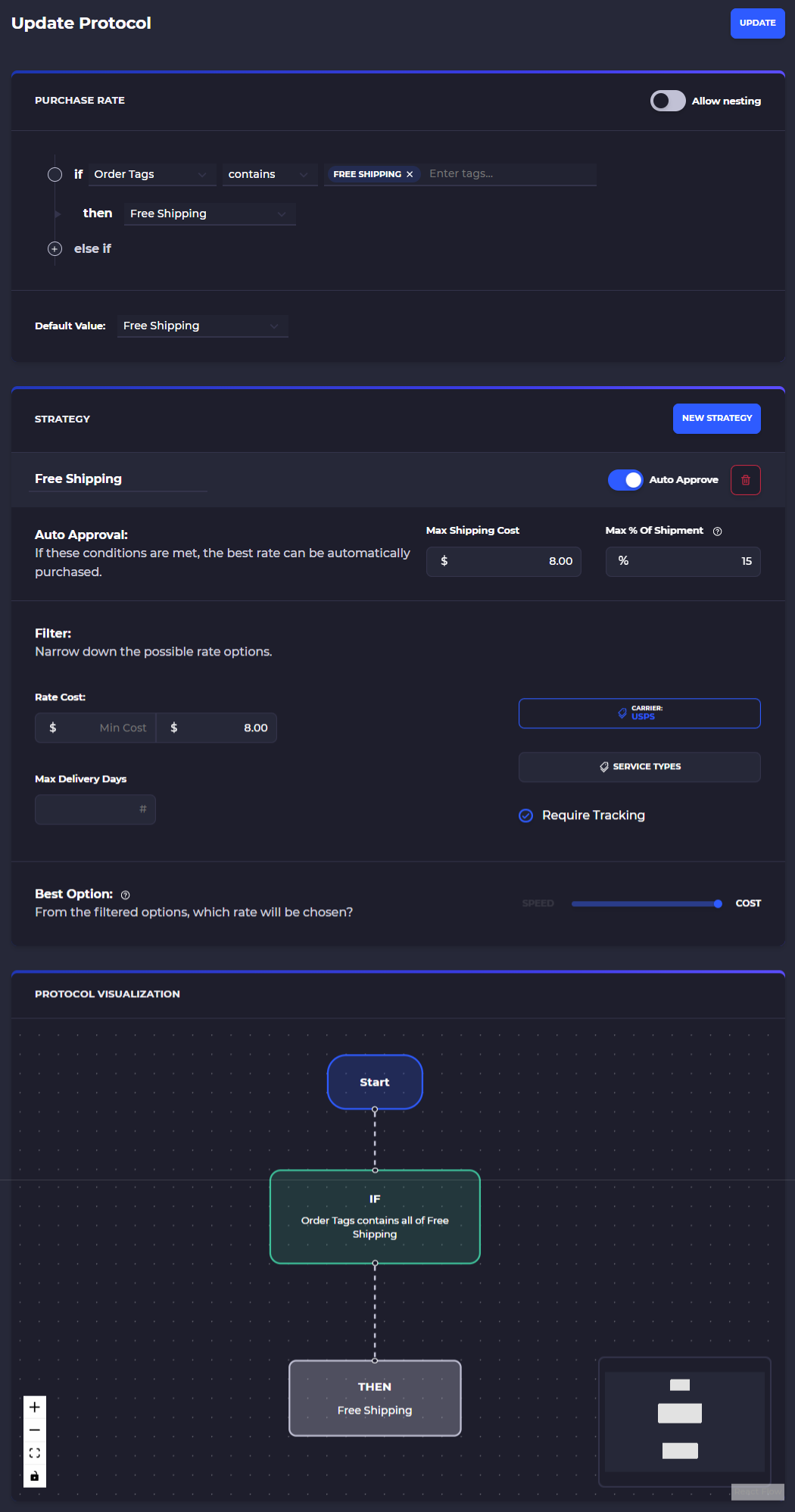
Example 2: Free Shipping Promotions
Conditions:
Order Tags contains "Free Shipping"
Filters:
Maximum cost: $8
Carriers: USPS only
Require tracking: Yes
Auto-Approve:
If shipping cost under $8
If shipping is less than 15% of order value
Best Rate: 100% weighted toward lowest cost
Create Autopilot Protocol
Here we will go through the steps to create your new autopilot AI shipping assistant as well as some things to be aware of and adding new triggers.
Once you are in autopilot simply tap on 'Add Protocol' to start building!
Autopilot Criteria
In the first part of the autopilot creation you will provide some criteria and if/then breakdown for when certain shipping strategies should be used. You can string together multiple criteria and depending on if the order qualifies the autopilot system will direct the order to use the appropriate strategy.
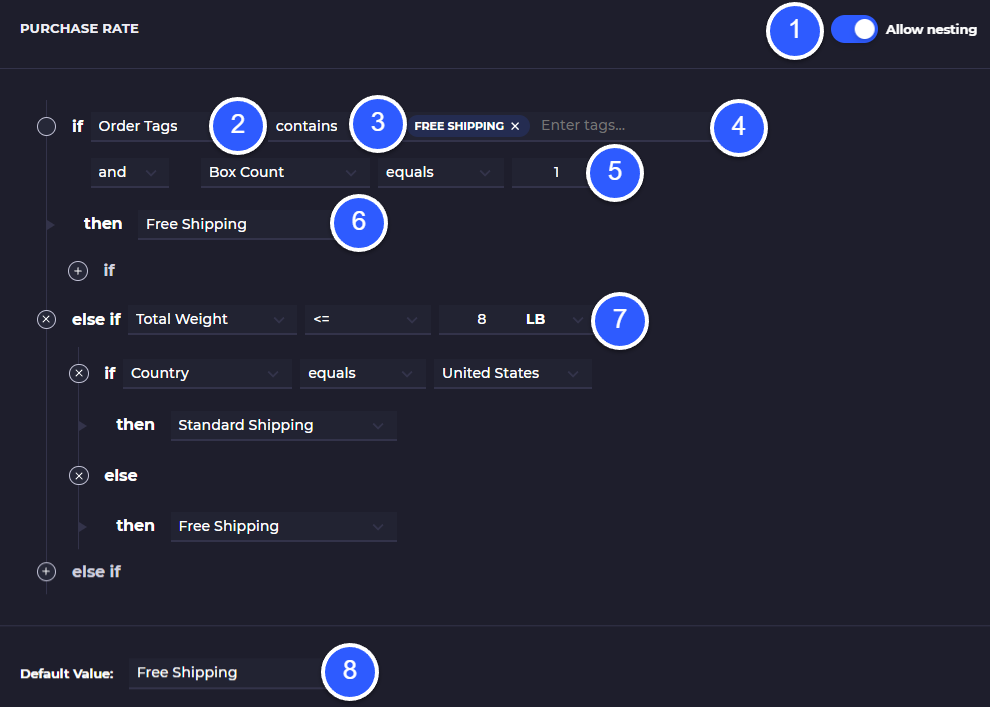
You can enable nesting of subsequent if/then statements to get multi-layer requirements that must be met in order for a shipping strategy to be selected
Select the classification criteria (these are listed above in this doc)
Select which type of comparison to make for each classifier
Choose or enter the value to look for given the criteria which will narrow down the available options to those that match this classification
Additional classifiers that must be meet in order for a shipping strategy to be selected
the shipping strategy that will be selected if the criteria is met - these are created below the purchase rate selection and you can add multiple shipping strategies within one protocol and as the AI works through your criteria this will get to the appropriate option
Add a second layer to your purchase rate option which has a new classification criteria and optionally a different shipping strategy
The default shipping strategy if no other criteria is met
Shipping Strategy
When you fulfill orders in SKUSavvy and an order matches some criteria the automation part of autopilot will select the corresponding shipping strategy and then choose the rate that matches the shipping policy decisions included. This will determine if the shipping rate can automatically be purchased, or if it needs manual review. This can also determine which carriers, or specific carrier services should be used, whether tracking is required, and others.
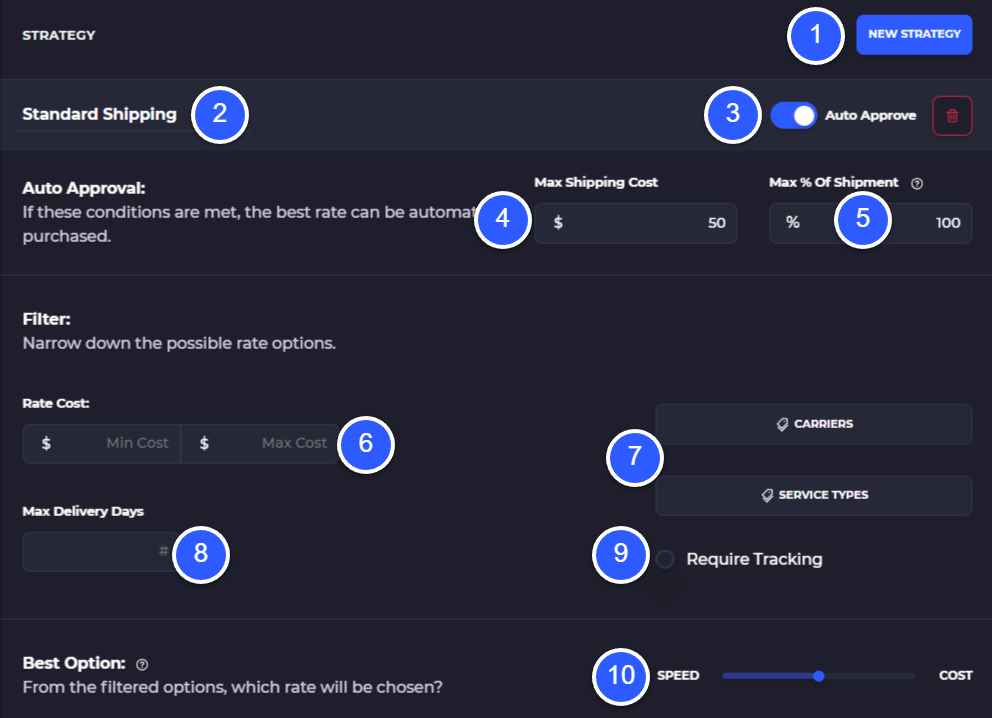
Create a new strategy, these are used in the protocol setup in the first part of the setup as an output from the criteria you set up
Name for your shipping strategy which will appear as a dropdown option in the protocol
Choose whether this shipping strategy can automatically be approved so that autopilot will purchase the rate for you and print without any human input
Auto approval conditions which must be met, this is for the max cost the shipping rate could be
Max % of shipment cost. Based on this percentage the shipment cost could not exceed this percentage of the orders total cost to be considered valid for this strategy
Narrow down available shipping rates to within a min or max range set here
Choose the available carriers (USPS, FedEx, AusPost, Canada Posand specific services available (USPS Ground Advantage, FedEx 2-Day, Canada Post Ground, etc.)
Filter out shipping rates based on the max number of delivery days the shipping service takes
Indicate whether the rate chosen should require tracking on the shipment
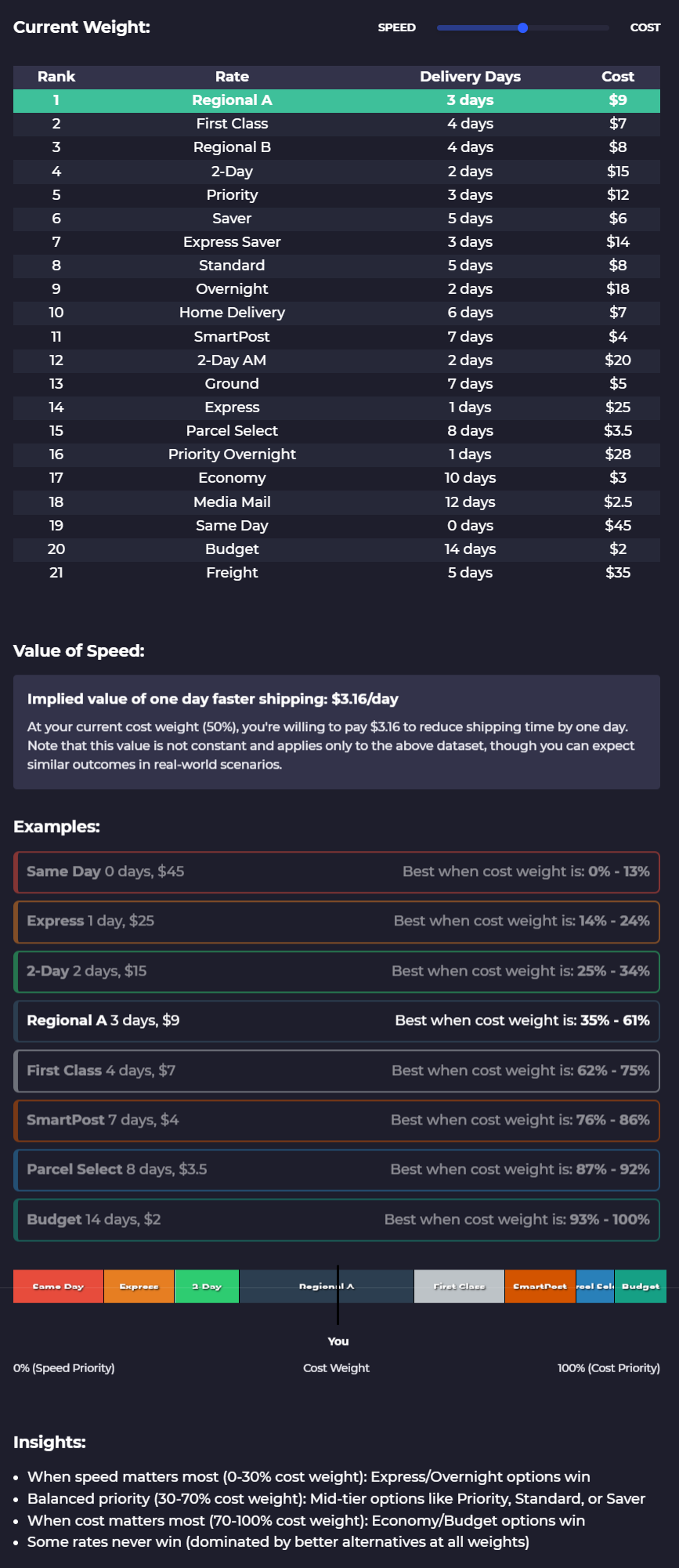
Slider scale to indicate the preference for speed vs. cost when actually selecting a rate
Understanding Speed vs. Cost
The sliding scale on a shipping strategy is designed to assist the AI in your rate selection. With increments of 5 as you slide up or down SKUSavvy will provide different weights to the AI for rate selection between speed of delivery and cost of service. See the example below:
{ deliveryDays: 3, cost: $5 }
{ deliveryDays: 2, cost: $10 }
{ deliveryDays: 10, cost: $3.00 }
1) Identify the mix/max of each factor
deliveryDays: 2-10
cost: 3-10
2) Assign a z-score to each shipping service (0=best, 1=worst)
Rate 1: { deliveryDays: 3, cost: $5 } -> { deliveryScore: 0.12, costScore: 0.28 }
Rate 2: { deliveryDays: 2, cost: $10 } -> { deliveryScore: 0.00, costScore: 1.00 }
Rate 3: { deliveryDays: 10, cost: $3 } -> { deliveryScore: 1.00, costScore: 0.00 }
3) Final scores (costWeight = 75%, speedWeight = 25%):
Rate 1: score = 0.24
Rate 2: score = 0.75
Rate 3: score = 0.25
Rate 1 would be chosen because it is the lowest score
Tap on the information icon next to 'Best Option' to get a full breakdown of the rate choice and you will get a breakdown like below:
Autopilot Visual
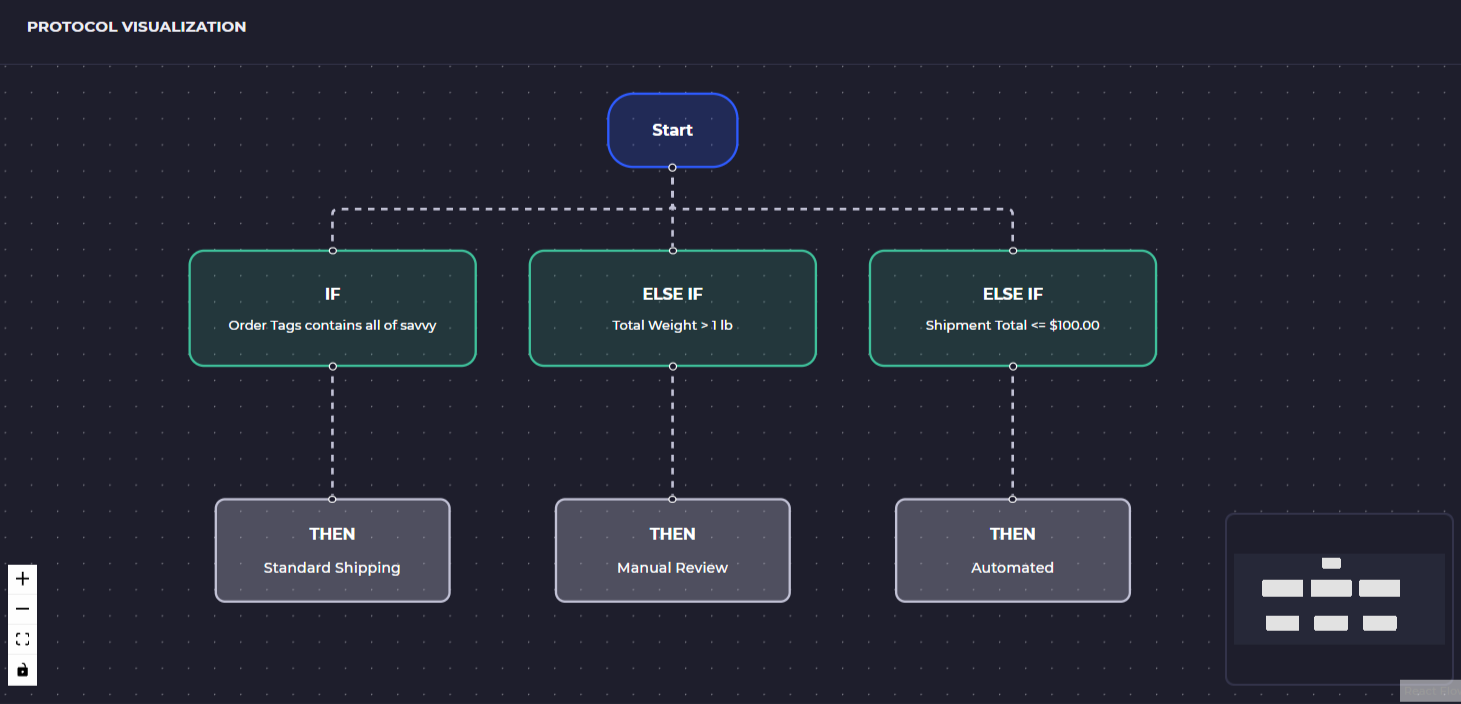
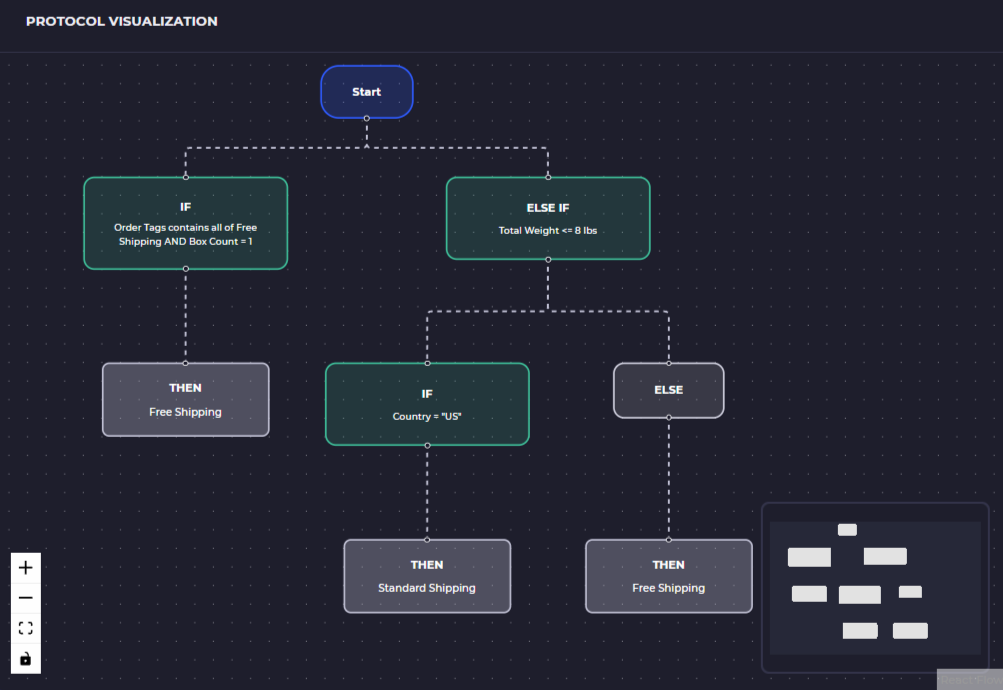
SKUSavvy automatically generates a visual hierarchy of your shipping criteria and strategy based on the options you select. Use this to confirm the cohesion between your criteria and the strategies is what you expect.
Using Autopilot During Fulfillment
Once you have a autopilot protocol setup you will start seeing a new autopilot toolbar on the fulfillment screen. This enables you to engage/disengage and shows whether rates were filtered out.

Simply go through the fulfillment workflow like any other order to see autopilot working.
Autopilot Disengaged
When you first use autopilot it will show as disengaged meaning it will still show the best rate based on your protocol but will not purchase a label automatically until engaged.
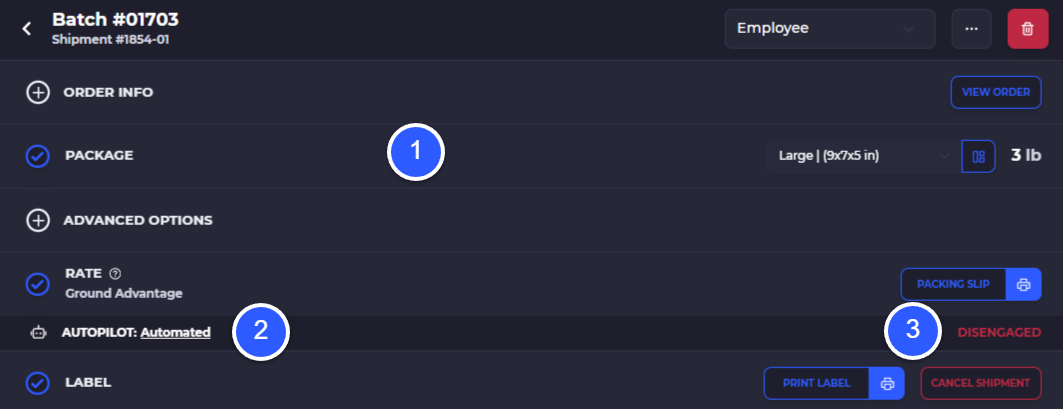
Pack items and select a box size like normal
Shows autopilot suggested shipping strategy
Shows that autopilot is engaged. CLICK on this to engage it, and for subsequent batches this will stay on. Each user will need to engage autopilot on their account.
Autopilot Engaged without Automatic Purchasing Because of Filters
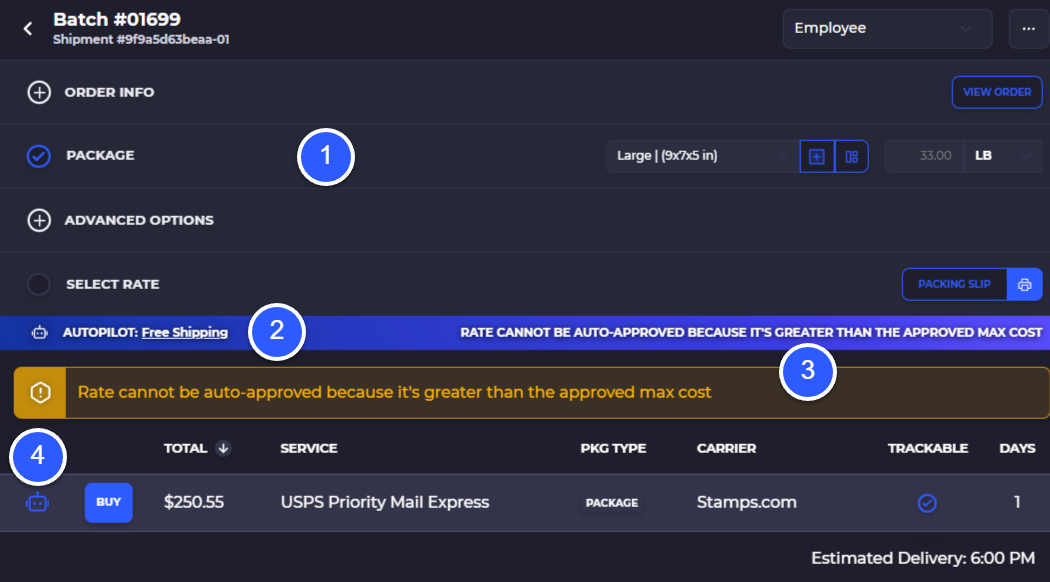
Pack items and select a box size like normal
Shows autopilot is engaged and the shipping strategy that would have been chosen
Shows that the label could not automatically be purchased because it it outside of the automatic rate purchasing allowed criteria
Robot icon indicates the rate that would have been purchased if automated purchasing was allowed on this order
People Also Ask
What is “autopilot” in SKUSavvy?
An automated system to purchase shipping labels based on a users criteria and AI.
Eliminates manual rate selection
Applies rules by order type, size, value, or destination
Purchases labels if rules are met
How does SKUSavvy choose the best shipping rate?
It filters available rates based on strategy rules, then selects the best one using your custom balance between cost and speed.
Control filter logic: carriers, delivery days, rate cap
Cost-speed slider sets your balance
Auto-approve based on thresholds
Will this increase my warehouse efficiency?
Undoubtedly it will because you will no longer need to think about which shipping rates should be selected and multiple button clicks are eliminated. The crucial business logic of weighing speed vs costs can be codified for optimal purchasing decisions every time.
Automated process flow
Once packed a rate is automatically selected and printed
Less button clicks
Is this similar to Shopify Flow?
In a way it is, right now this is limited to the shipping side of your operations but in the future autopilot will become a complete automation engine for your warehouse operations.
Select triggers and actions
Get automated results
Sends information back to Shopify autonomously
How much does autopilot cost?
Autopilot is free on all SKUSavvy accounts and can be configred and run from day one.
Built-in to existing account workflows
Requires a one time setup to enable
Can autopilot print many shipping labels at once?
Currently no but this is the goal.
Automates the rate selection and purchase on a single order in the batch
Can apply logic to many matching shipments
Where can I get help setting this up?
Please reach out to [email protected] if you need some help setting this up.
Personalized for your account goals
Support plans available here https://skusavvy.com/support-plans